

1. Introduction
Changes in the status of services being monitored can be misleading if the associated host is inactive or unreachable. For this reason, the host’s status should be known before the status of the services, and a DOWN status for the host should suppress (now irrelevant) notifications about the status of its services. For example, if a host is also monitored using active checks, the notification regarding an unreachable HTTP server might lead you down the wrong path.
Unfortunately, in a modern IT environment, not every host is directly accessible from the Checkmk server. Checkmk also offers a range of options for determining the status of these hosts in a meaningful way. This article explains and categorizes them.
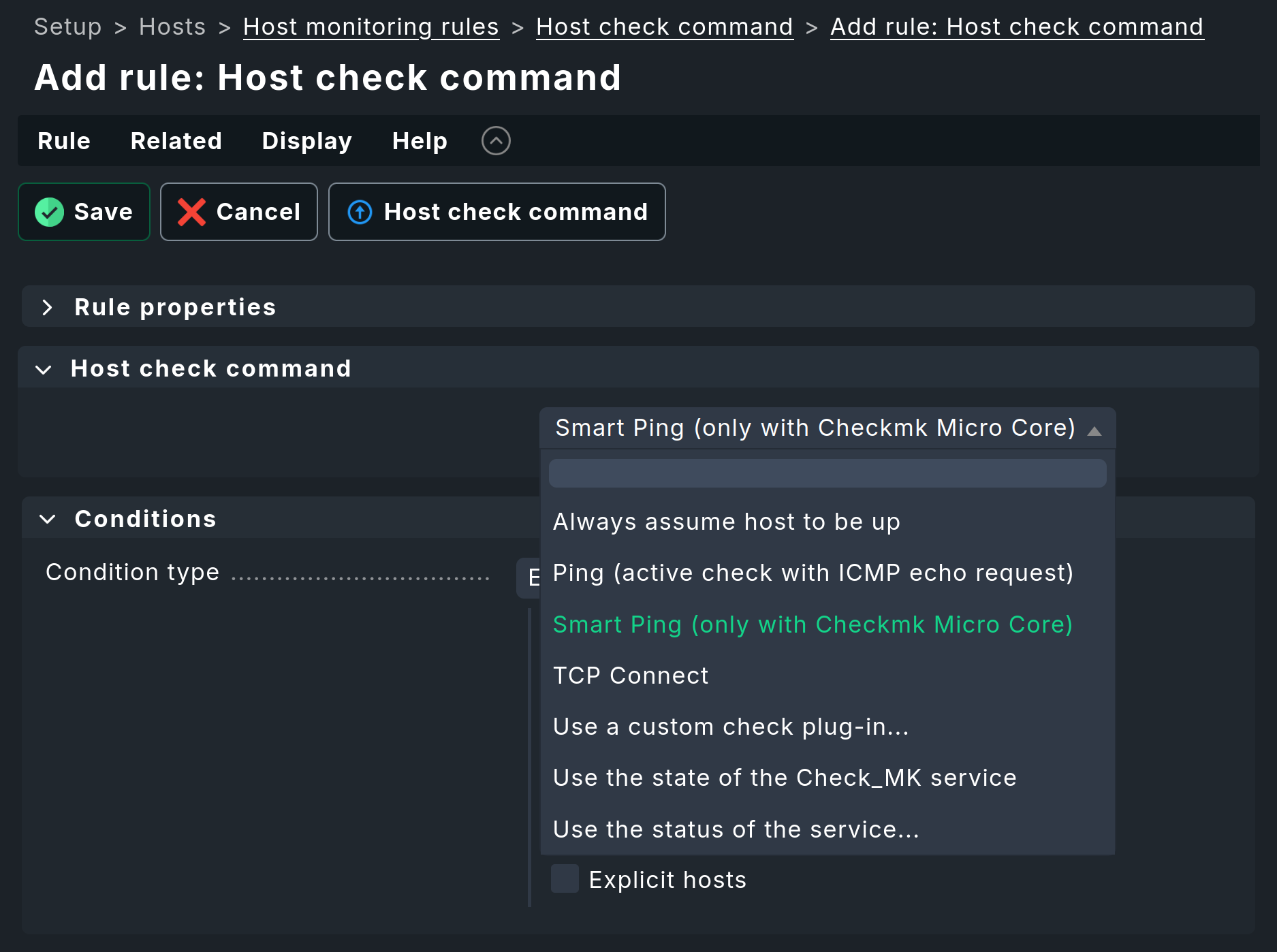
Unless otherwise specified, the settings described here apply to the rule Setup > Hosts > Host monitoring rules > Host check command.
2. Types of host checks
Checkmk offers two types of ping checks and the ability to map any services to host statuses. In addition, it is possible to run any programs to determine host statuses.
2.1. Ping
Hosts configured with an IP address are checked regularly via ping. The process is relatively simple and requires few resources: To check whether a host is UP, a few ICMP packets are sent. The hosts respond to the packets with ICMP echo replies, which Checkmk receives.
There are two implementations for performing a ping in Checkmk:
The standard ping
 The standard method for Checkmk Community and, optionally, for the commercial editions
is to perform the check via a separate subprocess.
It can be enabled via the Ping (active check with ICMP echo request) setting.
For each host check, a
check_icmp process is then started.
This corresponds to an active check, which must be scheduled by the monitoring core.
The process sends several packets and waits for a response.
If no response is received, an exit code other than zero is returned, which marks the host as DOWN.
Waiting—particularly for outstanding packets in the event of unreachability—does consume resources. Therefore, when using Checkmk Community in combination with hosts monitored by the regular Checkmk agents or with agents via SSH, it may make sense to use Service Status Check_MK instead.
The Smart Ping
 Smart Ping is a feature of the Checkmk Micro Core (CMC) and is therefore reserved for the commercial editions.
The CMC
performs host checks by default using a method called Smart Ping.
Smart Ping is based on an internal component called icmpsender, which uses its own ping implementation.
Since Checkmk with CMC does not rely on an externally launched program, a new process does not need to be started for every ping check.
The default behavior of icmpsender differs significantly from that of a traditional ping.
Instead of sending multiple packets in rapid succession and waiting for responses, icmpsender sends only one ICMP packet per host every six seconds (the interval can be configured using the rule set Normal check interval for host checks).
This behavior significantly reduces resource usage and network traffic.
The CMC component icmpreceiver is responsible for receiving packets.
It determines whether a host is UP or DOWN based on incoming responses (Echo Replies).
If a packet arrives, the host is considered UP.
If no packet has been received from a host for more than 15 seconds, that host is marked as DOWN.
You can change the timeout using the rule set Settings for host checks via Smart PING--the above-mentioned 15 seconds result from two and a half check intervals of six seconds each.
The icmpreceiver component also evaluates incoming TCP packets with the SYN (synchronization) and RST (reset, resetting a connection) flags.
If it receives such packets, the host in question is considered UP.
 |
The |
Ping metrics
A distinctive feature of classic ICMP checks using the Ping (active check with ICMP echo request) setting is that they result in a metric assigned to the host that reflects packet loss and the duration of the round trip. In some cases, the availability of this data can provide valuable additional insights into the quality of a network connection.
Since Smart Ping does not evaluate sequence numbers to reduce overhead, this method cannot be used to measure the round-trip time of an ICMP request or to determine the number of lost packets. If you rely on this data, enable Ping (active check with ICMP echo request) for the relevant hosts, or configure the active check Check hosts with ping (ICMP echo request) in addition to Smart Ping.
2.2. Status of the Check_MK service
With the Use the state of the Check_MK service setting, you specify that a host should be UP if Check_MK is OK and DOWN in all other cases. You should use this setting if monitored hosts are located in a network with Zero Inbound Traffic and send monitoring data to the Checkmk server via the push mode.
When using Checkmk Community, this setting can improve performance by skipping host checks before sending notifications; however, the number of false positive host notifications may increase slightly.
2.3. Status of another service
Using the Use the status of the service… setting, you can define any service to determine the host status. For example, if a monitored host is accessible via SSH from the monitoring server, you can use Setup > Services > Other services > Check SSH service to test a handshake with the SSH server. If this fails, the host may theoretically be accessible, but this will definitely require attention before any other issues can be addressed.
2.4. Connecting to a TCP port
A generic version of the approach presented earlier, status of another service, is TCP connect. Here, only the possibility of a TCP connection itself is checked. Handshakes and similar processes are not taken into account. Note that in the event of packet loss and similar network issues, performance degradation similar to that experienced with a regular ping check may occur.
2.5. A command determines the state
You have a great deal of flexibility with Use a custom check plug-in.
Here, you can specify any command, and an exit code of exactly 2 is interpreted as DOWN.
Commands can be monitoring plug-ins (for those 2 always means CRIT) or simple shell commands.
For example, if you send agent output to the monitoring server as a file via some sort of creative method and read it there, checking for the file’s presence or a minimum file size, using test can provide insights into the host’s status.
To rate all exit codes except zero as DOWN, a little bit of creativity is needed:
2.6. Always consider a host to be UP
The Always assume host to be up setting is useful when a particular host in the monitoring system isn’t actually a 'real' host, but is merely intended to serve as a container for a collection of services. This can be the case, for example, in cloud or cluster monitoring, where data is retrieved via Piggyback and such hosts are dynamically generated. This setting is therefore the default when a host is explicitly configured without an IP address (No IP).
3. Repeated host checks in the event of service issues
As mentioned at the beginning, host checks do not merely serve to determine whether a host is UP or DOWN. Their second purpose is to determine, before sending notifications about active checks, whether the host status is the cause of the service status. Only then is the appropriate notification triggered.
Performance and reliability differ between actively triggered host checks and host checks via Smart Ping.
3.1. The active host check
The default behavior is to trigger a host check after a failed active check and then decide whether to send a notification based on host or service status.
The procedure differs in detail between Checkmk Community and the commercial editions (when using the Checkmk Micro Core, aka CMC):
In Checkmk Community, host check results are cached for a few seconds. This caching is intended to prevent a host check from being run again if the last one was performed only a few seconds ago. However, it can lead to erroneous notifications if the host was still UP during the host check a few seconds ago, but a CRIT status from an HTTP check is now caused by network issues that occurred afterward. If the cached result is out of date, a new host check is performed immediately, which consumes resources (creation of a process).
The commercial editions start a process immediately. Since an Active Check Helper is used for this, the resource requirements are lower than with Checkmk Community.
3.2. Passive host checks via Smart Ping
If Smart Ping is configured, the monitoring core can operate passively and does not need to actively trigger a check.
The icmpsender continuously sends packets at six-second intervals, and the icmpreceiver constantly listens for ICMP echo replies and TCP RST packets.
If the host is indeed unreachable, the CMC waits for the configured time period (typically 2.5 intervals, i.e., 15 seconds) and then sends a notification regarding the host status DOWN. Here, with a 15-second delay, but without having to start a new process.
However, if signs of life from the host are received, the service can be notified immediately. A real-world example: You have configured an active check for SSL certificates. If this check fails because the web server is overloaded or not active, a TCP RST packet is received a few milliseconds after the active check starts. This packet signals Checkmk, indicating that while the host has refused a connection on port 443, it can only do so because it is UP. In this case, a notification regarding the service status can be sent immediately.
The same principle applies to notifications about network outages when Parent Hosts are defined: If a switch sends a heartbeat, notifications can be sent to hosts that are reachable via that switch.
Resulting advantages
This approach provides a number of advantages with Smart Ping compared to active host checks:
Virtually negligible CPU load from host checks: Even without particularly powerful hardware, tens of thousands of hosts can be monitored.
Monitoring is not slowed down by blocking active host checks if hosts are DOWN.
No false alarms regarding services due to an outdated cached host status.
4. Troubleshooting
As with service checks, host checks may also require some fine-tuning due to the specifics of your system environment or firewall configuration.
4.1. Caching intervals for Checkmk Community
Caching the results of the most recent host check in Checkmk Community can lead to incorrect notifications about service issues when notifications should actually be sent regarding host issues. For Checkmk Community, you can only adjust the caching duration globally via the monitoring core settings. The article on tuning the monitoring core shows which configuration files to modify.
Note that reducing this value to zero (immediate re-execution of the host check) should only be done if the number of active checks in your monitoring setup is small.
4.2. Firewall problems with Smart Ping
Firewall sends TCP RST packets on its own
Some firewalls do not discard TCP connection packets sent to unreachable hosts; instead, they respond with a TCP RST packet. In such cases, the firewall must not list itself as the sender of these packets but must specify the IP address of the destination host. Smart Ping will interpret this packet as a sign of life and thus incorrectly assume that the destination host is reachable.
In this situation, you can enable the option Ignore TCP RST packets when determining host state via Global settings > Monitoring core > Tuning of Smart PING.
Environments without ICMP
If ICMP is completely blocked in your environment, you will encounter hosts that rapidly fluctuate between UP and DOWN (flapping). In this case, TCP traffic generated by the agent query or the execution of active checks will cause the host to go to UP, but the short 15-second timeout will quickly cause it to go back to DOWN. In such cases, do not select Smart Ping; instead, use other methods described in this article to determine the host’s status.