

1. Introduction
Certificates ensure the secure operation of your monitoring: For incoming and outgoing communication in your Checkmk environment, they confirm the trustworthiness of the keys used, for example between the agents and your Checkmk site or in distributed monitoring for communication between the central site and remote sites.
Certificates are stored in the PEM format at Checkmk – including for the Checkmk certificate authorities (CA), which each attest to their own trustworthiness with a CA certificate. PEM stands for privacy-enhanced mail and is an easy-to-use text file format for storing and sharing cryptographic keys, certificates, and requests. Files in the PEM format are plain text files and, as such, can be easily viewed and edited using a text editor.
Checkmk equips your Checkmk sites with their own certificate authorities and certificates, which are essential for operation and communication between the components of a Checkmk setup (e.g., between the agents and the site). The certificates issued by a CA are called 'CA certificates'. CA certificates serve as digital IDs for encrypted communication: They inherit trust from their CA and pass it on in a chain of trust (or certificate chain).
The root CA is a trusted authority that acts as a trust anchor in a certificate chain: It issues a self-signed root certificate (a CA certificate) that establishes the credibility and digital identity of the certificates and CAs derived from it. At the end of the certificate chain is the leaf certificate as an individual entity. It inherits trust from the higher-level certificate members of the chain above it. Trust is passed on and confirmed through signing processes with digital signatures. One or more intermediate certificates may exist between the root and leaf certificates (figuratively: the branches on the certificate tree). The top intermediate certificate is signed by the root CA, and the intermediates below it act as subordinate CAs. There are no intermediate certificates in Checkmk because they are not necessary for the security architecture of the Checkmk software.
In practical terms, you can imagine the process as follows: A CA signs the certificate it issues with its private key, thereby guaranteeing its authenticity and validity. The system components involved rely on a predefined list of CA certificates. Web browsers, for example, provide a list of CA certificates (approved by a consortium of major browser manufacturers) and thus will trust websites that use intermediate certificates signed by these CA certificates and, in turn, server keys signed by them. Certificates that confirm the identity of a client or a person behind a server (or a web domain) are called server certificates – an example of this is the server certificate of a website that it presents to the browser. The term TLS/SSL certificates is often used synonymously for server certificates.
Put simply, the CA checks the public key of an applicant (person, website, or software component) by verifying the authenticity and validity of their certificate. If the result is positive, internal system communication is enabled, for example, between a site and its assigned hosts or in distributed monitoring between sites.
At Checkmk, agent communication is secured in a way that goes even beyond SSL/TLS: Communication between the Agent Receiver (in the site) and the Agent Controller (on the monitored host) takes place via mTLS, asynchronously and with end-to-end encryption. The 'm' in mTLS stands for mutual confirmation of a basis of trust: authentication of client and server that extends the standard TLS protocol. A certificate authority (CA) responds to signing requests from the Agent Controller of hosts under monitoring. This makes it easy to identify compromised agents.
The authenticity of each certificate can be verified using a fingerprint: A checksum is calculated from all data in the certificate and displayed as a hexadecimal number. This 'fingerprint' is the unique digital identifier of the certificate. Any tampering with a certificate changes its fingerprint and is detected when compared with a trusted authority. Communication only takes place after the necessary certificates have been successfully verified, and only in encrypted form. SSL/TLS certificates, for example, enable secure communication between web browsers and websites using the HTTPS internet protocol and ensure that data cannot be read or manipulated during transmission.
You can find the options for configuring certificates in the Global settings. You can view the certificates generated (or later replaced) in Checkmk when the site was created via the Certificate overview page.
2. Configuration options
In some cases, external applications need to communicate with Checkmk components that are secured with the site certificate. Such applications often refuse to communicate if the host name used to establish the connection is not included in the certificate. For Checkmk Ultimate version 2.5.0 and later, this only affects the OpenTelemetry integration. However, future versions will include additional components that use the site certificate.
For this reason, it is advisable that the host names used are included in the certificate.
In the Global settings, you can use Site certificate subject alternative names to set all host names for which the server certificate should be valid.
3. The certificate overview in Checkmk
Open the Certificate overview page via Setup > Maintenance > Certificate overview. Here at a glance you will find all of the basic certificates that were created and stored on the Checkmk side when setting up your site. This page is for informational purposes only and serves as an internal quick access point – for example, to check the validity and fingerprints of the preinstalled certificates. If you suspect problems with certificates, the overview can speed up troubleshooting. The Certificate overview page is the first place to go for this.
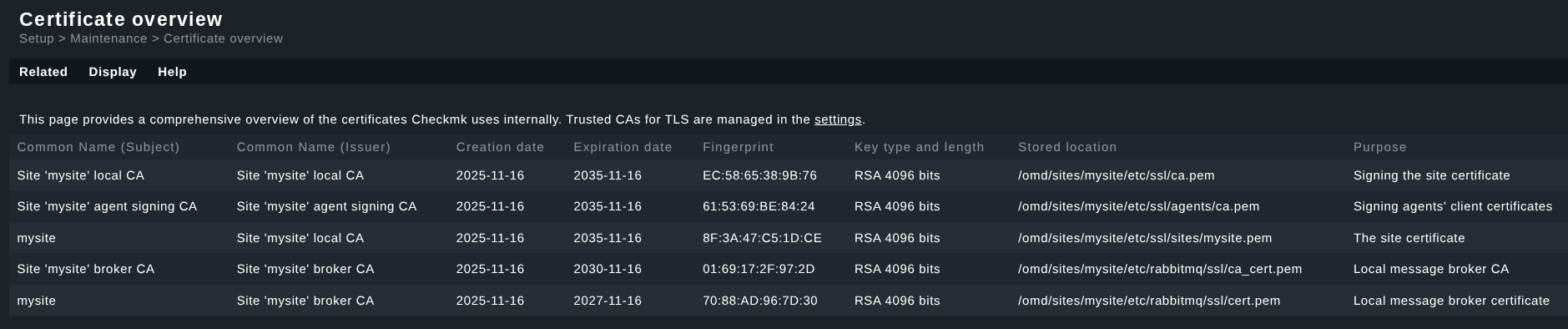
The Certificate overview page lists the certificates of the Checkmk components with their metadata: in the Common name (subject) section, you will find the certificates that have been issued, and under Common name (issuer) their issuer (Certificate Authority), each with their corresponding creation and expiration dates. For each certificate the individual fingerprint, key type (RSA), key length in bits, storage location with file path, and a brief description of its function (Purpose) are stored in addition to the term. The complete fingerprint is displayed as a tooltip (mouse-over text) for the respective fingerprint entry when you move the mouse over the entry. Feel free to take a look at your own site for orientation; the key length and other elements may differ from the example.
Three certificate authorities (CA) are always generated individually as trusted issuers of certificates when creating a Checkmk site. The page lists their CA certificates: one CA certificate each for signing the site certificate, one CA certificate for the agent keys during mTLS authentication, and one CA certificate for the message broker certificates at RabbitMQ.
By default, five certificates are listed for a single site. In distributed monitoring the certificate overview of your central site contains an additional entry for each connected remote site, as each remote site receives a remote site certificate to confirm the authenticity of the key used for communication between the central and remote sites.
3.1. Certificates for Checkmk components
Checkmk equips all monitoring sites with certificate authorities (CAs) and certificates that are essential for the operation and communication between the components of a Checkmk installation. The following table breaks down the function of each of these certificates, its position in the certificate chain, and the software features and processes in which it is integrated.
Further information can be found in the last column: 'Checkmk components' is a deliberately broad term used here to refer to a variety of components and functionalities in your monitoring software.
File path in the ~/etc folder |
Position in certificate chain | Function description | Checkmk components |
|---|---|---|---|
|
CA certificate |
Root certificate for signing the site certificate. Secures the site. |
|
|
Server certificate |
Site certificate for, among other things, securing communication between the site (Agent Receiver) and host (Agent Controller). This is an SSL certificate and confirms the authenticity of the key for network communication. It is used in several places. |
|
|
CA certificate |
CA certificate for signing the certificates for the agent (Agent Controller). Secures mTLS – responsible for mutual secure authentication of client and server, which extends the standard TLS protocol. |
|
|
CA certificate |
CA certificate for signing the individual message broker certificates. Message brokers are required for forwarding piggyback data in distributed monitoring. CMK uses the open-source broker software RabbitMQ as its message broker. |
|
|
Server certificate |
Server certificate for securing the network communication of the local message broker. This is an SSL certificate. |
|
|
Server certificate |
Server certificate of the remote message broker – for Message Broker. Securing the network communication of the message broker of the remote site |
The general management of trusted certificates for TLS-encrypted communication between the Checkmk server and the agents on your monitored hosts can be found in a separate area of the user interface. The settings for this can be viewed and managed under Setup > General > Global settings > Edit global setting > Trusted certificate authorities for SSL. From the Certificate overview page, you can open this setting using the Related > Trusted certificate authorities for SSL menu item.
 |
Keys and associated certificates for the system Apache must be stored with root privileges by the server administrator! |
The certificates for the system Apache (i.e., your system’s Apache HTTP web server) are important, but they are not listed on the Certificate overview page because they are not part of the Checkmk software. The server administrator is responsible for these certificates; the site users of a Checkmk site do not normally have access rights. System Apache certificates are relevant for agent updates, the web interface, and the use of the REST API, for example.
Please note: In a distributed monitoring with central setup, settings are transferred via the REST API. If you want to know how to secure your web interface with HTTPS, you can read more in the article of the same name.