
1. Introduction
The HW/SW inventory helps you to keep track of existing hardware and maintain control over installed software at all times. Checkmk provides ready-made plug-ins for many basic usage scenarios. However, in many cases you will want to obtain more detailed information about specific hardware and software. This is where custom HW/SW inventory plug-ins come into play.
For this article, we will assume that you already have a basic knowledge of the programming of agent-based check plug-ins. For aspects where the use of the Inventory API does not differ significantly from the use of the Check API, the explanations in this article are therefore somewhat sparse. However, as needed we will point out any significant differences all the more clearly.
 |
Note the difference between check plug-ins and inventory plug-ins. Check plug-ins are primarily suitable for rapidly changing data, while inventory plug-ins are suitable for data that rarely changes. In this article, we will use a simple example involving USB devices to illustrate this point. For example, if you want to ensure that no one connects USB devices that are not on a whitelist to any computer in the monitoring system, a check plug-in will be more suitable. |
1.1. The Check API documentation
The Inventory API is a part of the Check API. To access the documentation, follow the same steps as for agent-based check plug-ins.
You can access the documentation supplied with your Checkmk site. To do this, navigate to Help > Developer resources > Plug-in API references in the Checkmk GUI. In the new browser window, select Agent based ("Check API") > Version 2: cmk.agent_based.v2 in the left navigation bar. Even without a currently running Checkmk site, you can view a copy of the plug-in API documentation at docs.checkmk.com/plugin-api.
2. Preparation
The default setting for Checkmk is to update inventory data only once a day. This, of course, conflicts with the need for results to be visible quickly when testing your own programming. We therefore recommend two preparatory measures to increase speed without significantly increasing the system load:
Do not use the
mk_inventoryplug-in, which generates a high load on the host that provides the data for the new plug-in that is to be created.Set the execution interval of the active check for this host to one or a few minutes.
3. The agent plug-in
If you want to add inventory functionality to an agent-based check plug-in, you may be able to use an agent section written for your check plug-in.
For our example, create your own.
The basis for this is the lsusb command.
When called without parameters, it outputs a list of all connected USB devices.
This could look like this:
The short version used here in its first fields shows which bus and port a device is connected to. This is followed—separated by a colon—first by the manufacturer ID, then by the device ID. The rest of the line contains descriptive text.
3.1. The resulting script
Since Checkmk handles line-by-line output well, three lines are sufficient for the required check plug-in:
Do not forget to make the plug-in executable:
If the host on which you are testing the agent plug-in is a virtual machine, or if you do not want to be continuously removing and connecting devices, simply save the following example in a file in the spool directory. Spool files are included in the agent output and are transferred with it, so make sure that the file ends with a line break.
You can then simulate connecting and removing USB devices by adding or removing lines from the text file.
3.2. Testing the agent
Test the agent output locally with the following command:
Depending on the number of connected USB devices (or the number of lines in the spool file), you should now see the output of lsusb and a few lines of the following agent section.
Make sure that the line break at the end of the agent section is correct.
4. The inventory plug-in
Inventory plug-ins reside in the regular directory structure alongside the normal check plug-ins.
You can either store inventory plug-ins as separate files, in which case we recommend using the prefix inventory_.
You can alternatively integrate inventory plug-ins into the same files as check plug-ins, in which case you should omit the prefix entirely.
Which method you choose should depend on clarity and the need for shared functions.
To create a pure inventory plug-in, you must therefore create a suitable directory:
4.1. A basic plug-in
You can now create a basic inventory plug-in, which you can edit using any text editor:
The structure is similar to that of check plug-ins.
The inventory plug-in also imports from the cmk.agent_based.v2 namespace.
An instantiated CheckPlugin object is linked to a specific check function that returns one or more Result objects via yield.
Similarly, an instantiated InventoryPlugin object is linked to a specific inventory function that returns an Attributes object via yield.
The Attributes returned by yield implement the minimum meaningful leaf of an inventory tree:
The
pathdescribes the relevant node in the tree hierarchy, here Hardware > Usb > General.The key-value pairs in the
inventory_attributesobject are represented as a key-value table.
First, test that the plug-in is syntactically correct and can be started during inventory:
If this is the case, update the configuration for the monitoring core and then restart your site:
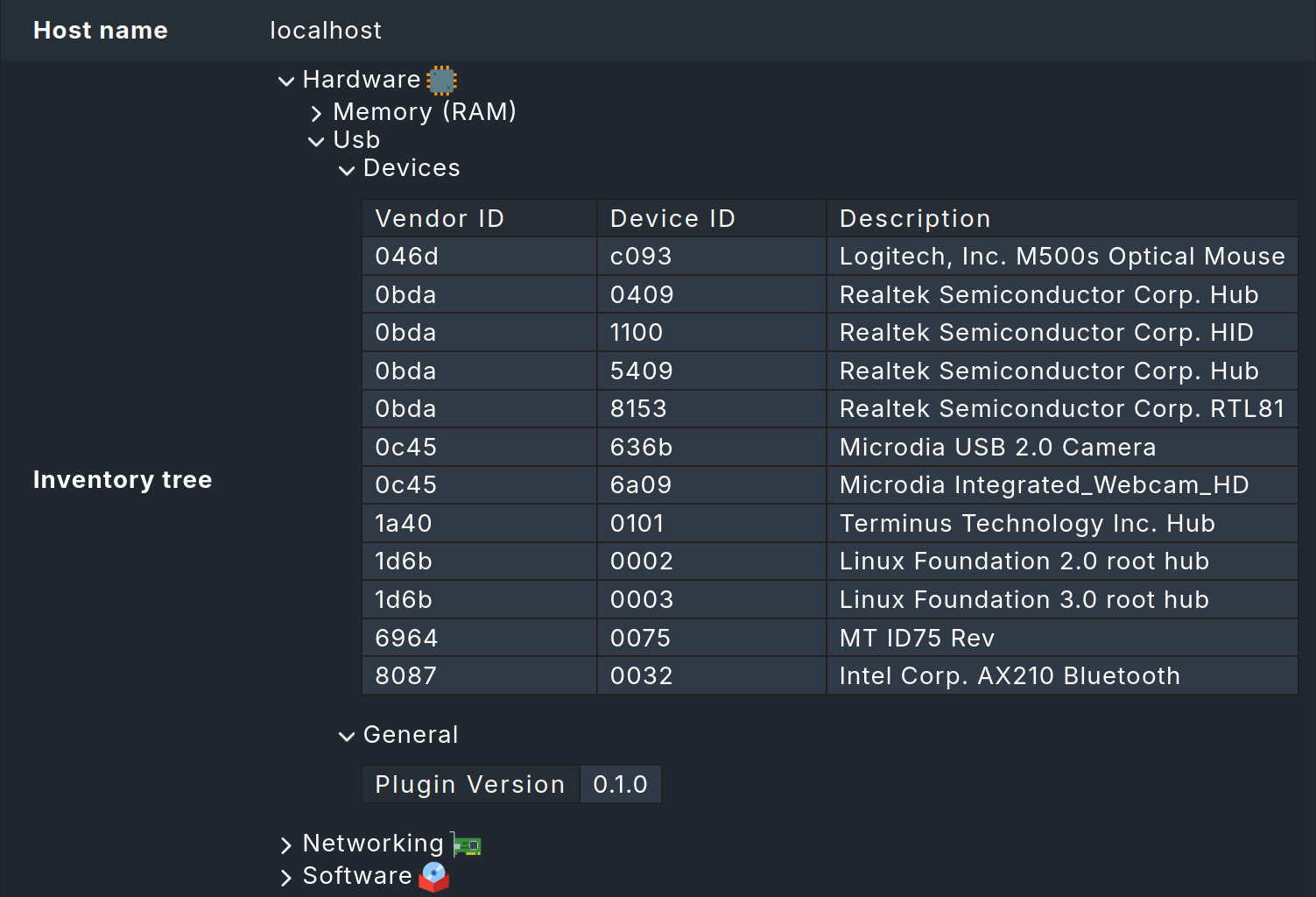
A look at the test host’s inventory now shows—as soon as the next regular check has been performed—a new leaf in the inventory tree.
4.2. Writing the parse function
Agent sections without a specified separator are converted into a two-dimensional list of tokens using the default separator (space) before being passed to the inventory function: A list of tokens is created for each line. Each of these lists is in turn an element of a list of lines. If a separator is specified, it defines the boundary between tokens. This facilitates the processing of CSV-formatted data, for example.
A parse function such as for agent-based check plug-ins is not absolutely necessary. However, using a separate parse function can have some advantages. For example, it increases clarity and extensibility. And if an existing agent-based check plug-in is to be reused, the question does not even need to be asked: Simply continue to use the existing parse function.
In our example, it does not matter where a USB device is connected. For the plug-in, the manufacturer and device IDs (sixth item in the list) and the description (from the seventh item to the end of the list) need to be determined.
While the maximum supported USB version was simply hard-coded in the simple example above, you are welcome to think about how you can determine this in the medium term using regular expressions from the description. To do this, the entire description is required, i.e., everything from the seventh to the last word in the list:
4.3. Writing the inventory function
Here you can take a shortcut: Unlike agent-based check plug-ins, the parse function is not integrated by creating an AgentSection object, but must be called from the inventory function itself.
You are familiar with the principle of yield for the continuous transfer of elements from agent-based check plug-ins:
Here, an object of type TableRow is returned for each line of the output of lsusb.
This contains three columns: Vendor and Device ID together serve as keys.
The third column, which is purely informative, contains the description.
Key columns have the special feature that they are used to detect changes, which in turn can lead to a status change of the Check_MK HW/SW Inventory service in monitoring. Furthermore, keys must be unique. Additional lines with the same combination of vendor and device IDs are therefore ignored.
In addition to key and inventory columns, you can also describe the entries in the table with status_columns and analogous status_attributes, which represent the state of an object.
The simple data types (int, float, str, bool, or None) are available for the value of the state.
For example, if you want to create a table that lists which connection (Bus/Device) is occupied, you can use key_columns (Bus and Device) and status_columns (here: bool).
4.4. The finished plug-in
The finished plug-in puts everything together.
The TableRow class is also imported here:
5. Rule sets for inventory
Since the Inventory API is part of the Check API, the creation and application of rule sets is exactly the same as for the development of regular check plug-ins. For this reason, we will only show a simple example here.
5.1. Defining a rule set
The output of lsusb includes several lines for hubs (external and root hubs).
These devices, which have no functionality of their own, make it difficult to maintain an overview.
Users should therefore be able to decide for themselves whether hubs should be included or not. They should be able to configure this setting using a checkbox in a rule.
To do this, create the rulesets folder for the plug-in family:
Now create the rule set in this folder:
Once you have saved the script for the rule set, validate it with cmk-validate-plugins and then restart the site with omd restart.
You can ignore any complaints from cmk-validate-plugins about existing but unlinked rule sets at this point.
The linking is done in the next section.
You can now view and customize the rule in the GUI under Setup > Hosts > HW/SW inventory rules. If you know the name of a rule (here: Lsusb inventory demo), you can type it directly into the search field. With Add rule, you can create the rule you just prepared and apply it as usual to folders or hosts with the properties you selected.
5.2. Applying the rule set
The rule set has not yet been linked.
To apply it, add two more named arguments when creating the InventoryPlugin class.
In addition, the parameter dictionary must be passed to the inventory function as the first argument.
Here, you also add a regular expression to identify which device descriptions end with 'hub'.
Note that you must add another import line at the beginning of the script for this:
6. Customizing the display of inventory data
When viewing the hardware/software inventory, you’ll notice that the columns are displayed in a different order than defined in the plugin—namely, sorted alphabetically.
To improve the presentation, the Inventory UI API from the namespace cmk.inventory_ui.v1_unstable comes into play.
|
As the import path suggests, this is a programming interface that has not yet been marked as stable. We plan to release it as stable in Checkmk 3.0.0. Currently, we are planning minor enhancements rather than incompatible changes. Nevertheless, you should allow at least some time for testing when migrating your plug-ins from 2.5.0 to 3.0.0. |
Files that use the UI API are located in the inventory_ui subfolder of your plug-in family:
In the example shown, all data is handled as text fields.
This means you only need to change the order of the columns and define the column headers:
For the filename, Checkmk uses hardware.py, software.py, or networking.py as a convention.
You may deviate from this convention if it improves clarity.
Assuming you have developed an inventory plug-in for a mass storage device that was not previously supported; in that case, you can use the UI API to ensure the numbers are displayed correctly:
In addition to various options for customizing the display of text and numbers, the API also provides ways to change the background color of fields—typically in combination with Boolean values. Furthermore, you can define your own sorting and rendering functions.
7. Extension options
7.1. Subscribing to multiple sections
In the example, you have followed the standard procedure so far: An inventory plug-in subscribes to an agent section that has the same name as the inventory plug-in. But what if you want to use existing agent sections that are already being evaluated by an existing inventory plug-in? In this case, there is a high probability that an inventory plug-in already exists that uses the same name as the agent section. The following output provides an overview of existing sections:
In this case, and in cases where an inventory plug-in is to evaluate multiple agent sections, you can specify the subscribed sections as a list. For example, let’s assume that you want to evaluate two agent sections that refer to fictional items:
In this case, the subscribed agent sections must be explicitly specified. The name of the plug-in no longer has to match the agent sections:
The inventory function then receives the string tables as variables based on the pattern section_sectionname:
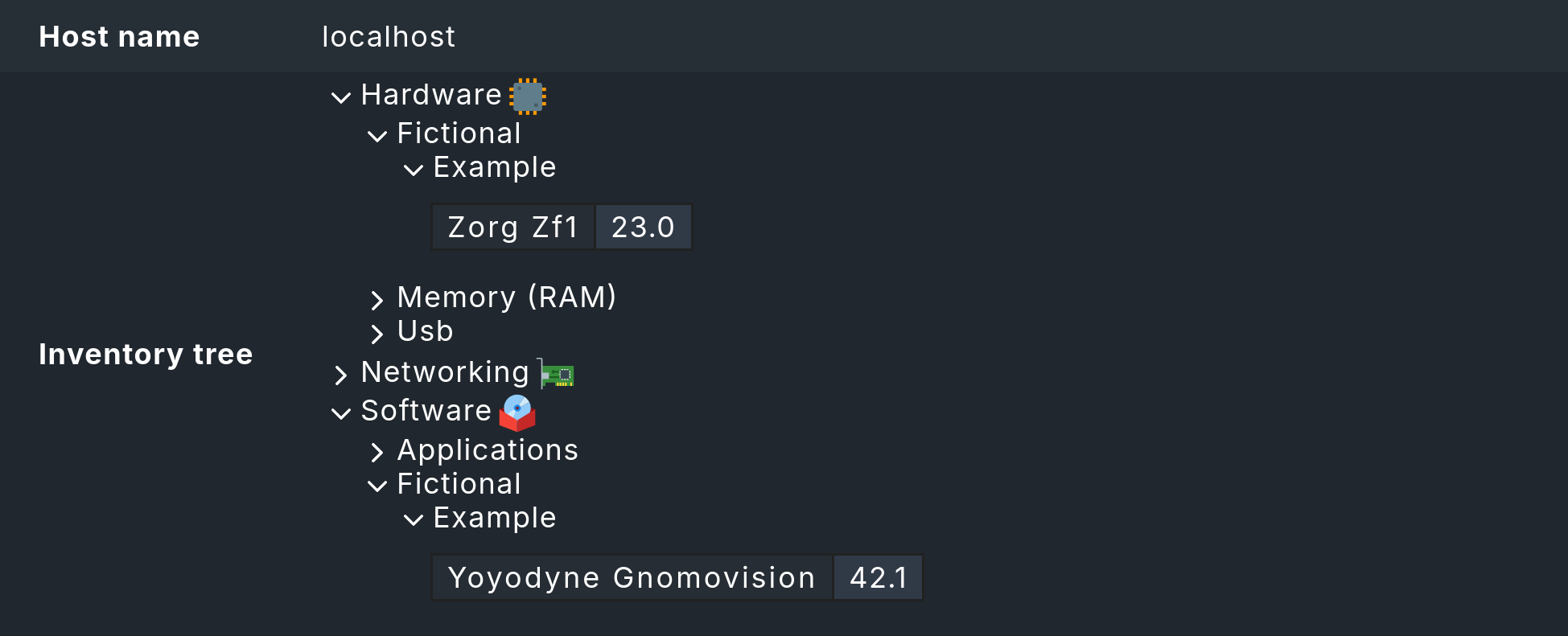
The complete plug-in, which includes the versions from Yoyodyne Gnomovision and Zorg ZF1 in the inventory tree, can then look like this:
In the Checkmk inventory, the resulting nodes look like this: