

 |
The functionality presented here is an experimental feature that gives you early preview access to upcoming Checkmk functionality, allowing you to test new capabilities and provide feedback before the feature reaches full stability. In this state, it is possible that functionality will not only be added, but also modified in such a way that an existing configuration will become obsolete and you will have to recreate it. |
1. Introduction
“Analyse the RAM usage of the hosts at the Munich site over the last 6 hours.” In Checkmk, a typical task such as this can traditionally be carried out by looking at a dashboard created for this purpose or a customised graph. With the introduction of an MCP server, this can now also be done via an AI assistant using natural language, on an ad hoc basis and without any preparatory work.
Via the Model Context Protocol (MCP), you can connect any compatible clients to Checkmk, such as ChatGPT, Claude or LibreChat. You are also completely free to choose which LLM to use; Checkmk imposes no restrictions in this regard.
The MCP server provides status information, historical data, configurations, availability and so on—and does so exclusively with read-only access. This means you can also grant third parties access to this AI interface without the risk of them deleting or altering anything.
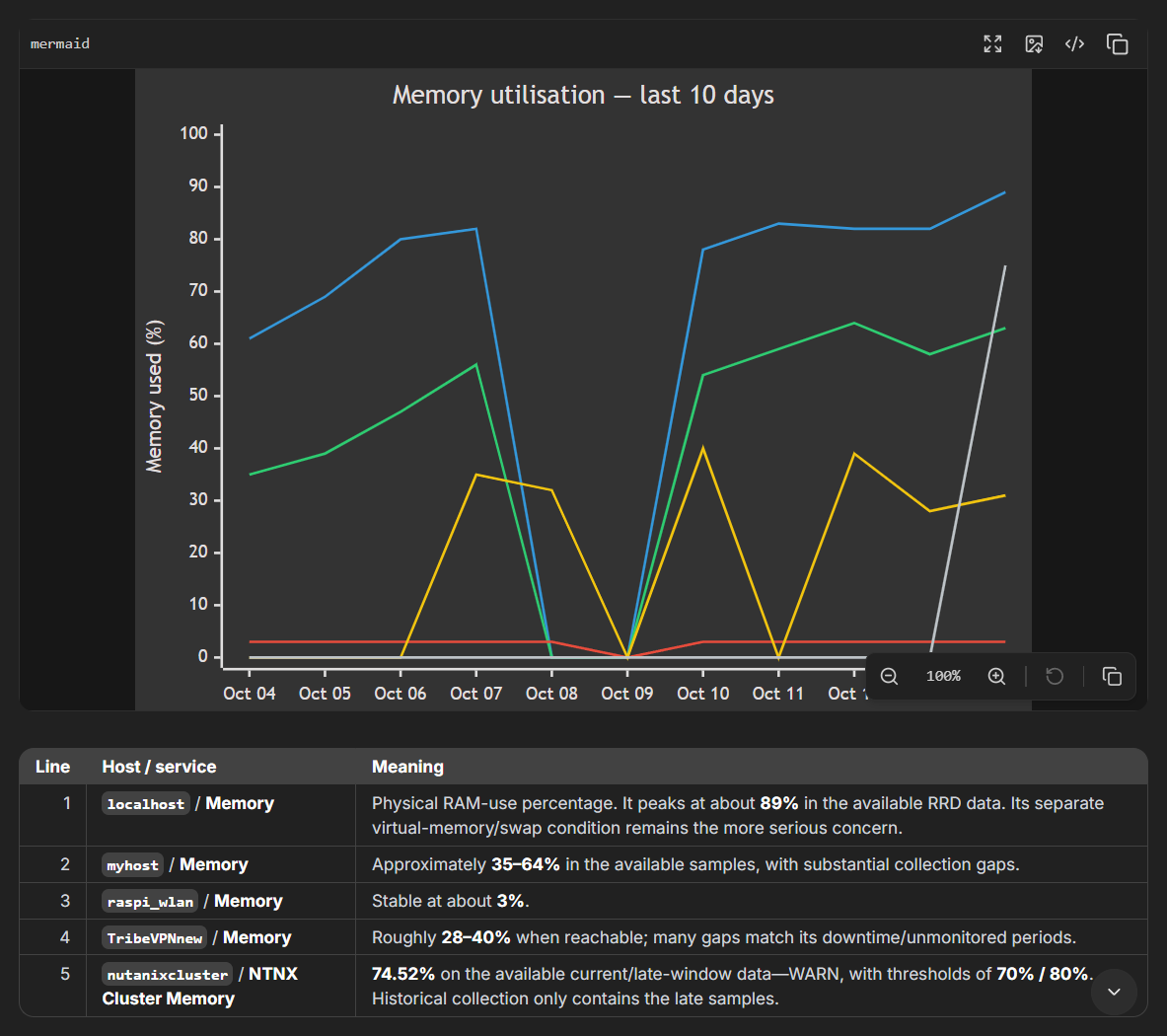
Set-up is essentially straightforward: the server must be activated in Checkmk and registered with the client, which in turn must authenticate with the server via OAuth.
Below, you can read exactly how to set up the MCP server with selected clients, what prerequisites need to be met, and what you can achieve with it.
2. Prerequisites
The following prerequisites must be met:
A commercial edition of Checkmk version 2.5.0p13 or later
MCP client with Streamable HTTP support
Particular attention should be paid to the last point: HTTPS security is essential, as authentication is carried out via OAuth, which in turn requires TLS.
Checkmk can act as an OAuth authorisation server via Issue #22264.
This means that clients can register dynamically via the OAuth endpoint (pass:https://myserver/.well-known/oauth-authorization-server/oauth-mysite).
Authorization takes place via a confirmation dialog in the browser—no intervention is required on the part of the administrator.
The resulting token has the same read and/or write permissions as the authorizing user account and expires after 48 hours.
The first Checkmk feature to utilise the new OAuth service: the MCP server.
In practice, there is a good chance that the TLS connection will be terminated before it reaches the Apache site server, for example by some sort of proxy or simply by the system Apache server.
In this case, the terminating application must send X-Forwarded-Proto: https.
This means that, although the connection between the Checkmk/MCP server and the terminating component runs over HTTP, the server knows that the request was correctly secured via HTTPS from the client’s end.
You can find an example Apache configuration in the article Securing the web interface via HTTPS.
 |
Important: If you have upgraded from an older Checkmk version, you must restart the Apache configuration for your site using |
3. Setting up the MCP server
Once the prerequisites are in place, the setup can be completed in three steps.
First, enable the MCP server under Setup > General > Global settings > AI features > Enable MCP server.
Then register and authenticate the MCP server in your client using the following URL: https://myserver/mysite/check_mk/mcp.
The registration process is essentially always the same, but can be carried out in various ways, such as via the graphical user interfaces, the command line or configuration files. Below you will find an example for each method:
- Claude (CLI)
Registering an MCP server via the CLI:
claude mcp add --transport http mycheckmkmcphttps://myserver/mysite/check_mk/mcpAuthentication:
claude mcpSelect the connection you have created and then Authenticate.
Note: The command-line interface is available on all paid Claude accounts. In the free version of Claude, MCP servers can be registered and authenticated via the graphical user interface.
- ChatGPT (GUI)
In the ChatGPT desktop client, you can add the server under Edit > Settings > Integrations > Plug-ins > MCP. You simply need to provide the following details:
Any name
Type: Streaming HTTP
URL:
https://myserver/mysite/check_mk/mcp
Authentication:
Once registered, you will find the Authenticate button directly next to the connection itself.
- LibreChat (YAML)
LibreChat also allows configuration via YAML files:
librechat.yamlversion: 1.2.1 mcpSettings: allowedAddresses: - 'myserver.mynetwork.lan:443' mcpServers: Checkmk: type: streamable-http url: 'https://myserver.mynetwork.lan/mysite/check_mk/mcp' requiresOAuth: trueAuthentication:
Next, select the connection you have created in the LibreChat interface to start the authentication process.
- MCP Inspector (GUI)
In MCP Inspector, select the Streamable HTTP template and enter the registration URL
https://myserver.mynetwork.lan/mysite/check_mk/mcp.As soon as the connection is activated, OAuth authentication will begin.
The actual authentication process is always the same, regardless of the client used: the OAuth dialog opens in a new browser tab to confirm the connection—naturally, with the user’s permission to carry out the configuration.
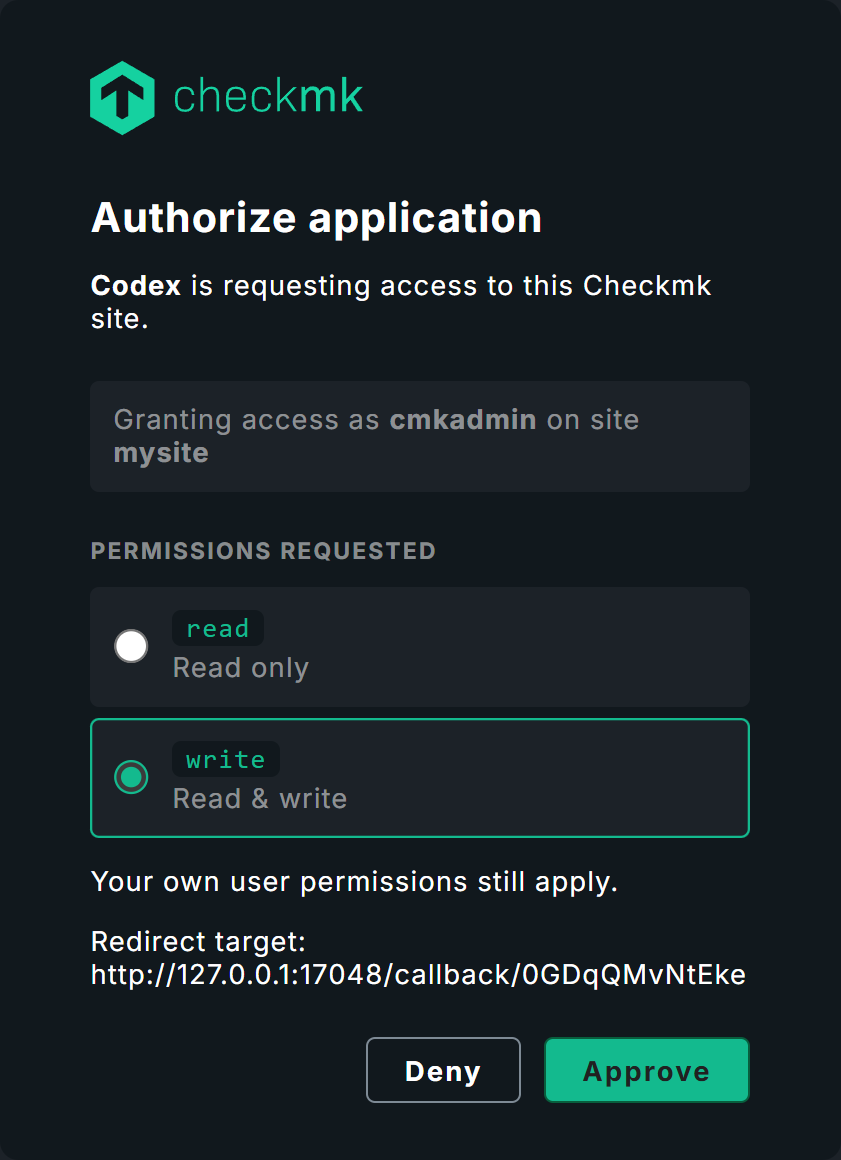
|
The consent dialogue also requests write permissions here—which is due to the permissions of the relevant user account. Nevertheless, the MCP server can only read, not write! |
Admins can find the authenticated connection in Checkmk under Setup > General > Registered OAuth clients, where they can also delete it.
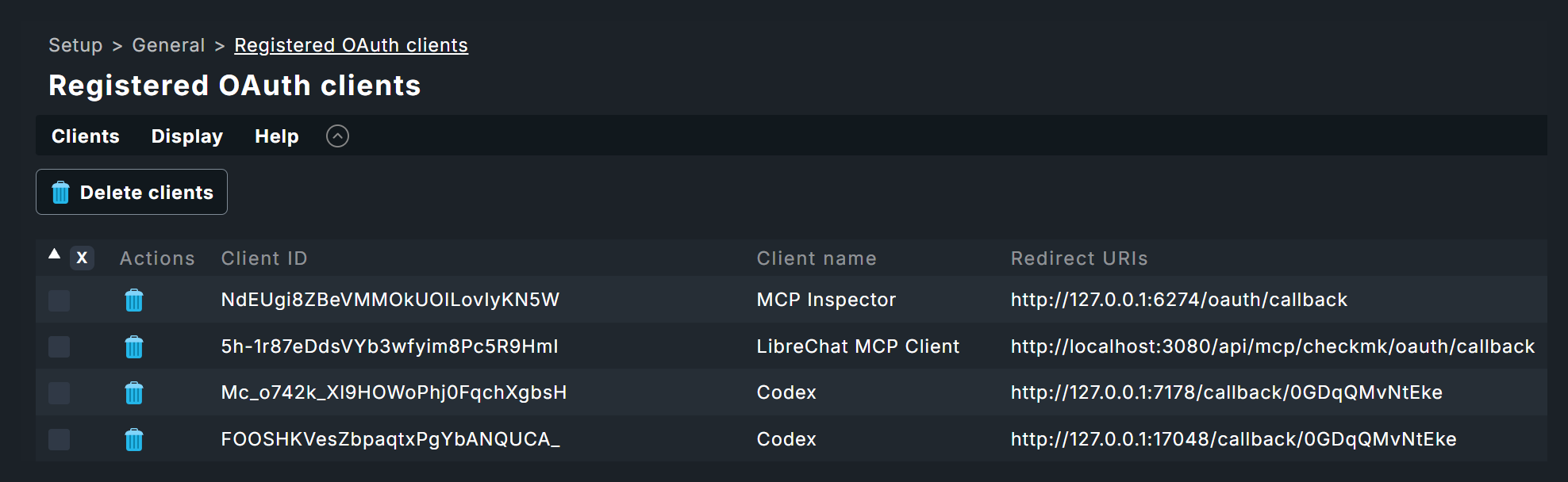
Users can also view and revoke their personal OAuth tokens via User > OAuth access tokens.
4. Sharing usage data
You can, if you wish, enable the transmission of MCP usage data to Checkmk.
This helps us to better understand how the MCP feature is used and to improve it.
You can find the setting for this under Setup > General > Global settings > AI features > Send MCP usage data to Checkmk.
The data is sent as OpenTelemetry traces to https://mcp-analytics.checkmk.com:54829.
If a firewall or proxy is in place, the host and port must be allowed through accordingly.
And, of course, no prompts or other content are shared whatsoever!
| Data type | Purpose |
|---|---|
Tool and resource calls |
The MCP method called by the client and the name of the tool or resource accessed, for example |
Response time |
The time taken by the site to respond, measured per request and per internal REST call, together with the respective status. |
Response size |
The size of the response, showing how much data a request returned. |
AI client |
The user-agent of the calling client ( |
Session ID |
A random identifier generated per session ( |
Protocol version |
The version of the Model Context Protocol agreed upon by the client and server. It shows us which protocol versions are actually in use. |
5. Querying Checkmk via the AI assistant
Once the connection has been established, here is a tip for your first query: What tools are available?
MCP works with individual tool definitions, such as get_hosts for querying hosts.
Initially, the MCP server works with 13 separate tools, but this is being continuously expanded—so it would make little sense to list the tools individually here.
Just ask the AI!
Generally speaking, you don’t necessarily need to worry about individual tools: clients such as ChatGPT and Claude decide independently which tools are required for queries.
However, you are certainly free to explore individual tools and, for example, set up agents in LibreChat that have access only to get_hosts or only to get_availability.
If, for instance, you work with API tokens rather than flat-rate packages, this would allow you to optimise token usage.
|
A quick tip on the subject of costs: If you use all-inclusive services such as ChatGPT or Claude Code, you will be subject to token limits at most, not individual charges. However, if you use a combination such as LibreChat + OpenAI API tokens, for example, queries can quickly become unexpectedly expensive—if an expensive LLM such as GPT-6 Astra is used, even in small monitoring systems, a handful of queries can cost several euros. Even with a cost-benefit-optimised model such as GPT-5.6 Terra, individual, non-cached queries may still cost one or two cents. For real-world testing, you should therefore rely on a controlled budget or flat-rate services. |
Of course, you can use the AI interface to gain an overview of monitoring, individual network segments or business applications.
However, we developed the MCP server primarily for root cause analysis (RCA):
Here are a few real-world examples.
5.1. Example: Service unavailable
A simple starting point: An internal Checkmk server is repeatedly experiencing brief outages, long loading times and, in some cases, crashes. Regular monitoring quickly reveals that there are recurring bottlenecks in working memory—from here, an administrator would normally have to manually investigate what is causing this and whether it coincides with the outages. Using the AI assistant, a few brief prompts essentially provided the necessary clarification—here is an outline of the workflow:
-
Prompt: Find issues on
myserver.Response: Working memory usage is high.
-
Prompt: Is this the reason for service outages and longer waiting times?
Response: Indirectly, yes—intensive swapping leads to high CPU utilization.
-
Prompt: In some cases, the system stops responding and needs to be restarted—analyse incidents prior to restarts.
Response: Prior to restarts, high working memory usage is observed, followed by high swapping activity, which leads to CPU core usage.
-
Prompt: Suggested solution?
Response: Increase physical working memory by at least 8 gigabytes.
In this case, regular monitoring revealed one thing above all else: a high load on the working memory. However, the AI quickly made it clear that the slow response times were due to CPU utilization—which, in turn, was triggered by a lack of RAM and the resulting swapping activity. The same insight could also have been gained within Checkmk itself—for example, via a custom graph visualising RAM and CPU utilization as well as swapping activity simultaneously. That would, however, have involved considerably more work—and there would have had to be a specific suspicion already in place. In such straightforward cases, AI can simply be used to correlate different statuses, status changes, metrics and events (for example, from logs)--the analysis of timestamps is particularly helpful here.
5.2. Example prompts
Ultimately, you can query anything relating to configuration, hosts, services, events and status using natural language. Here are a few useful example prompts to get you started.
“Compare the trend in memory usage on myhost-01 over the past week with the time when the memory service reached critical status, and tell me whether the problem has gradually built up or has occurred suddenly.”
“Check whether any configuration changes were made in the 'Linux/Production' folder in the hour before the CPU warnings occurred.”
“Identify the hosts that went down within the same five-minute time range last night and tell me what they have in common in terms of folders, tags and labels.”
“Analyse the status of my online shop. I’ll then carry out some tests. Afterwards, perform another analysis and compare the results.”
6. Files and directories
| File path | Description |
|---|---|
|
MCP server log file |
|
MCP server configuration |