

1. The welcome page
So, Checkmk is ready. After successfully logging in to Checkmk in the previous chapter, you will be greeted with a warm welcome to Checkmk. Since version 2.5.0, the welcome page is the new starting point for newly created sites when a Checkmk administrator logs in. The restriction to administrators is due to the fact that the actions that can be performed here require permissions that are usually only available to Checkmk administrators.
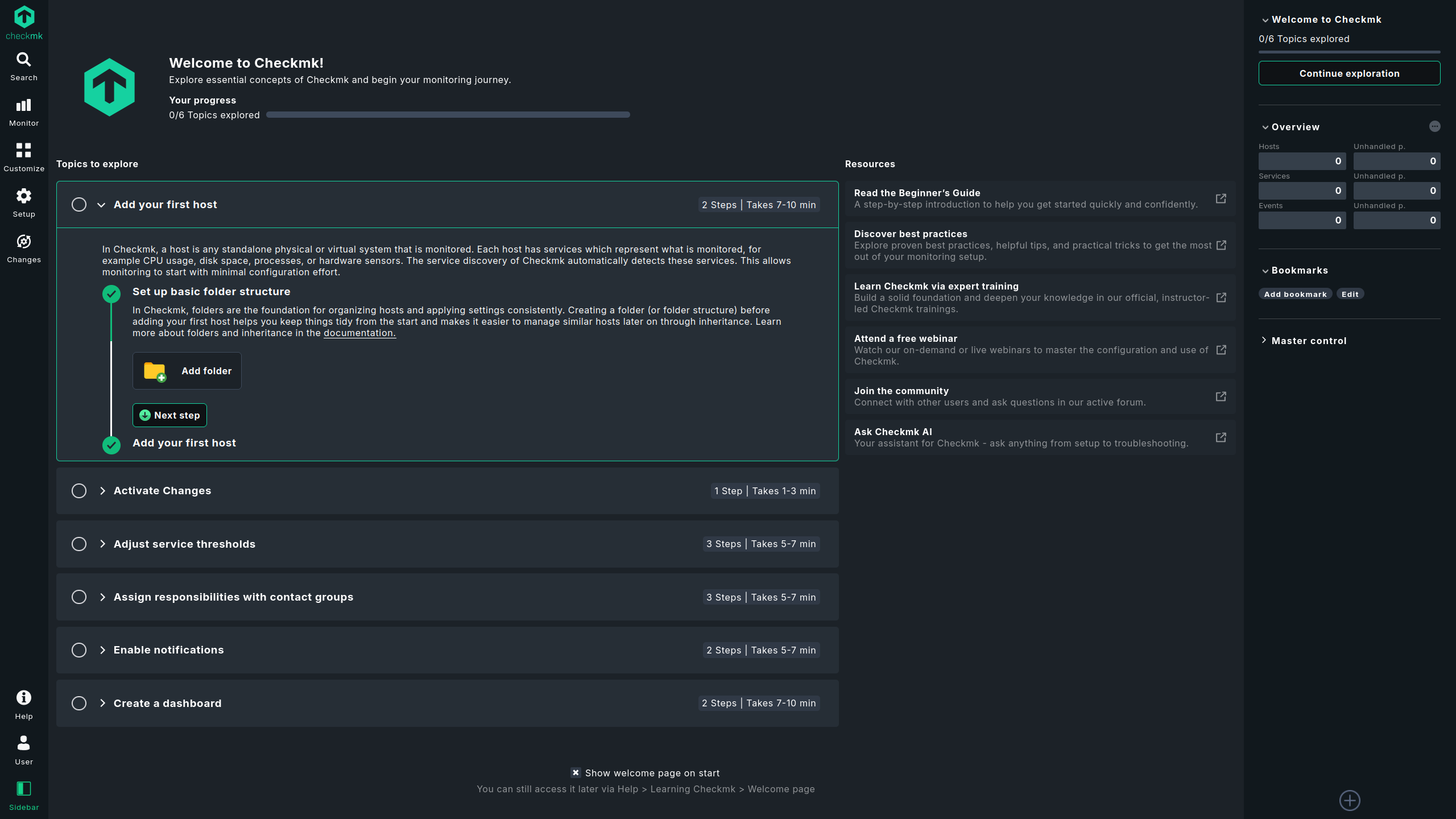
The welcome page anchors access to helpful information directly in the user interface. It helps you quickly complete the most important configuration tasks in Checkmk, such as creating hosts, customizing services, or setting up notifications.
The list of Topics to explore serves this purpose. The individual topics are structured in such a way that you can quickly find what you are looking for. Each topic first provides brief introductory information and then gives specific instructions that you can then in a series of steps carry out directly in the GUI. You can open the corresponding page in Checkmk directly in one step by clicking a button, without having to navigate manually through the GUI.
Once you have completed a topic, you can check it off yourself using the Mark as done button and continue with the next topic. Each topic you mark as complete advances the progress bar at the top of the page indicating the topics you have explored. However, you still have the option to return to steps you have already completed.
The very first item in Topics to explore explains how in just a few steps you can add the first host to your monitoring system. Using Checkmk without hosts is only moderately exciting, because without anything to monitor, the monitoring interface remains empty and you can’t really see what Checkmk is capable of.
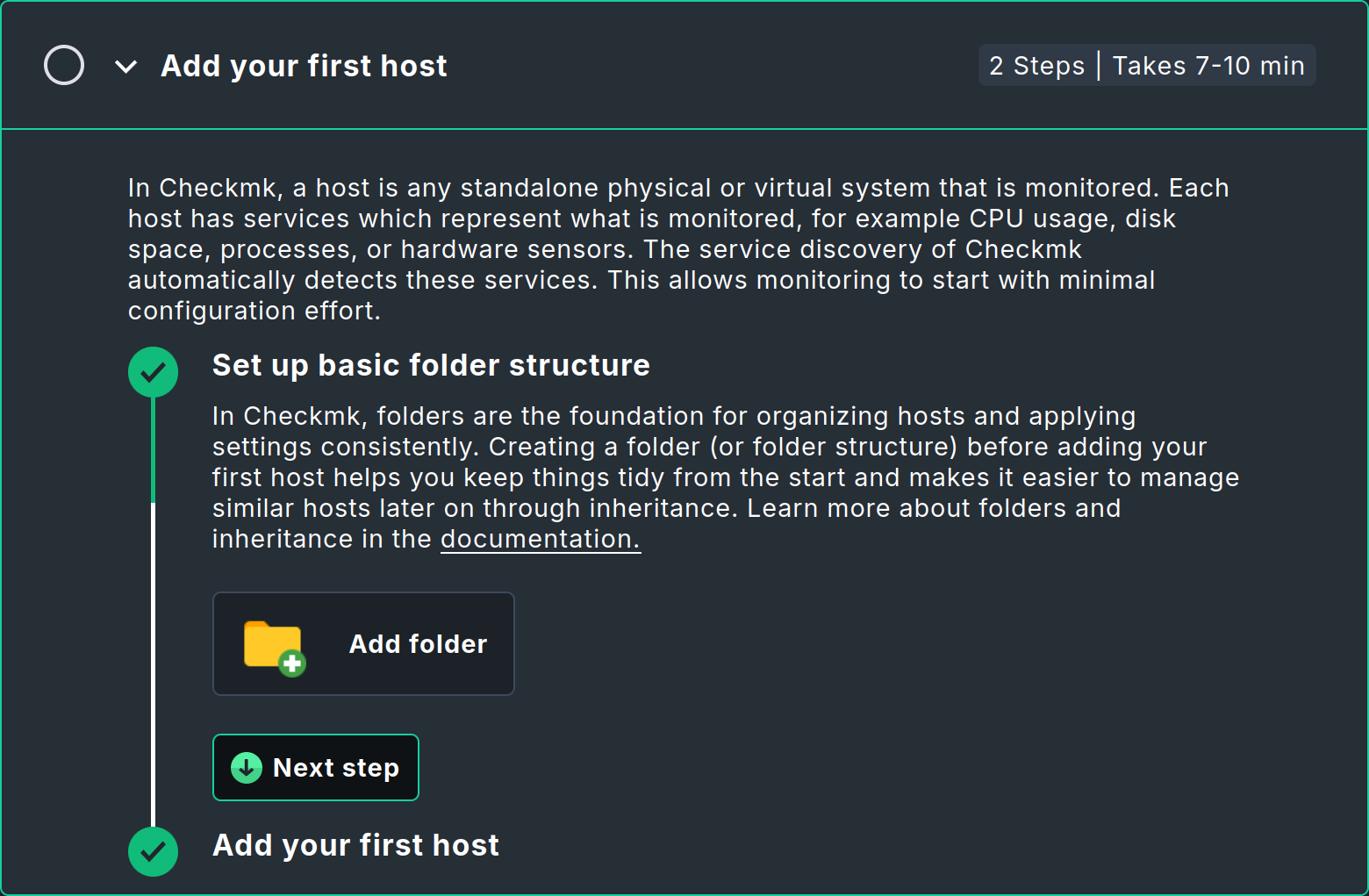
The topics on the welcome page focus on the 'how' rather than the 'why'. If you are looking for more detailed information, you will find it, as usual with Checkmk, in this User Guide and, in particular, in this Beginner’s Guide. Welcome page and Beginner’s Guide have the same goal: to help you set up your monitoring. In the next chapter of the Beginner’s Guide, we will show you how to create folders and hosts. That’s a promise.
If you want to start with the first topic in Topics to explore, be sure to first read a few notes on how to use the welcome page. If you have navigated to another page in Checkmk, there are several ways to return to the welcome page:
On the left side of the Checkmk user interface, you will find the navigation bar. Clicking on the Checkmk logo at the top of the navigation bar will take you back to the start page. This start page is and will remain the welcome page unless you have changed it manually.
You can always open the welcome page via the navigation bar, the Help menu, the topic Learning Checkmk and the entry Welcome page — or more briefly via Help > Learning Checkmk > Welcome page.
-
In the sidebar on the right-hand side, you will find the snap-in Welcome to Checkmk at the top:
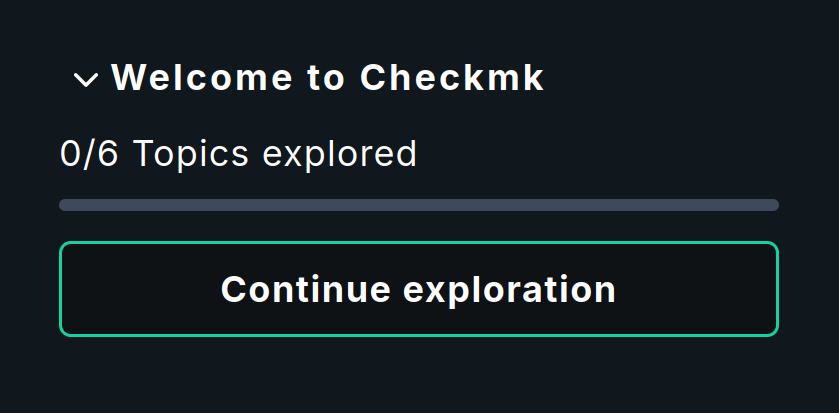 The top snap-in takes you back to the topics on the welcome page
Clicking on Continue exploration opens a so-called slideout.
A slideout temporarily displays information relevant to the current context.
A slideout slides in usually from the right side over the current page in Checkmk, which is then dimmed.
When you no longer need the slideout, you can simply close it again.
The Welcome to Checkmk snap-in opens a slideout that displays the Topics to explore.
The first topic that has not yet been completed is displayed, meaning you can continue where you left off.
The slideout contains the Open full view button, which reopens the complete welcome page.
If you are confident enough working with the Checkmk user interface and no longer need the welcome page as your start page, you can change the start page. At the bottom of the welcome page, you will find the checkbox Show welcome page on start. By deselecting this checkbox, the start page will be changed to the default dashboard. You can track the corresponding change by selecting User profile > Edit profile in the User menu of the navigation bar. The option Start URL to display in main frame is now set to Default start URL. By selecting Welcome page, you can restore the welcome page as the start page at any time.