

1. The start page
This chapter takes a closer look at the parts of the Checkmk graphical user interface (GUI) that we only touched on in the previous chapter.
The start page is displayed after you log in. By default, it shows a dashboard, the so-called Main dashboard, unless the welcome page is displayed. How to change the start page to this default dashboard is described in the chapter on the welcome page.

 The Main dashboard of Checkmk Community shown above, with problems and statistics for all hosts and services, is replaced in the commercial editions by a different dashboard with additional graphs.
You can change the start page via your user profile, which can be accessed via the User menu in the navigation bar with User > User profile > Edit profile. The option for the start page is called Start URL to display in main frame. You can find details in the article on the user interface.
In the following sections, you will learn about the basic elements of the interface, all of which can be seen in the image above. The most important thing to note is the division into the navigation bar on the left, the main page in the middle, and the sidebar on the right.
2. Navigation bar
With the navigation bar on the left and the icons it contains, you make the basic decisions about what Checkmk should do for you:

The Checkmk logo — for displaying the start page.
Search — for the search.
Monitor — for the monitoring itself.
Customize — for the customization of interface elements useful for the monitoring such as bookmarks, views, dashboards, and graphs.
Setup — for setting up the objects to be monitored (such as hosts and services).
Behind these three icons Monitor, Customize, and Setup are more or less extensive menus, the so-called 'mega menus' or icon menus, whose entries are divided into several topics — for example, in the Setup menu under the Hosts topic you will find entries for configuring hosts, host groups, host tags and host-specific rules.
Changes — for activating pending changes.
If there are pending changes, their number will be displayed in yellow in the Changes icon.
Help — for displaying helpful information.
At the top right of the Help menu, you will find the edition and version of Checkmk currently in use.
The menu itself contains entries with which you can call up documentation and information — inside Checkmk or outside.
Among other things, you can also open this User Guide.
If there are incompatible changes after an update of the site, you will see the number in red background color in the Help menu icon.
In the Help menu itself, a link in red background color is then displayed with which you can open the list of Werks of these incompatible changes.
User — for changing your user account.
At the top right of the menu you will see the current username and the role assigned to this user.
In this menu you can personalize your profile and log out of the Checkmk interface.
An overview of the available personal settings can be found in the chapter on the User menu.
Sidebar — for showing and hiding the sidebar.
Keyboard shortcuts
For quick navigation in the icon menus, various keyboard shortcuts are available.
| Shortcut | Action |
|---|---|
Strg+K |
Opens the search. |
Alt+M |
Opens the Monitor menu. |
Alt+C |
Opens the Customize menu. |
Alt+S |
Opens the Setup menu. |
Esc |
Closes the open menu. |
Tab |
Next hit in the search results. |
Shift+Tab |
Previous hit in the search results. |
Enter |
Call up search hit. |
 |
In the Checkmk GUI, JavaScript evaluates the number assigned to a key (keycode) and not the symbolic name derived from it (keysym). The keys shown in the table therefore refer to the QWERTZ keyboard layout. If you are working with a different layout (for example, AZERTY in the French-speaking parts of Switzerland), you may need to use other keys. |
3. The main page
The main page is the area between the navigation bar on the left and the sidebar on the right. After logging in, you will see the start page displayed in this area. What you see on the main page depends on where you are currently located in Checkmk. The content of the main page changes depending on your selection in the navigation bar or the sidebar. For example, in the Monitor menu, you can select Hosts > All hosts:
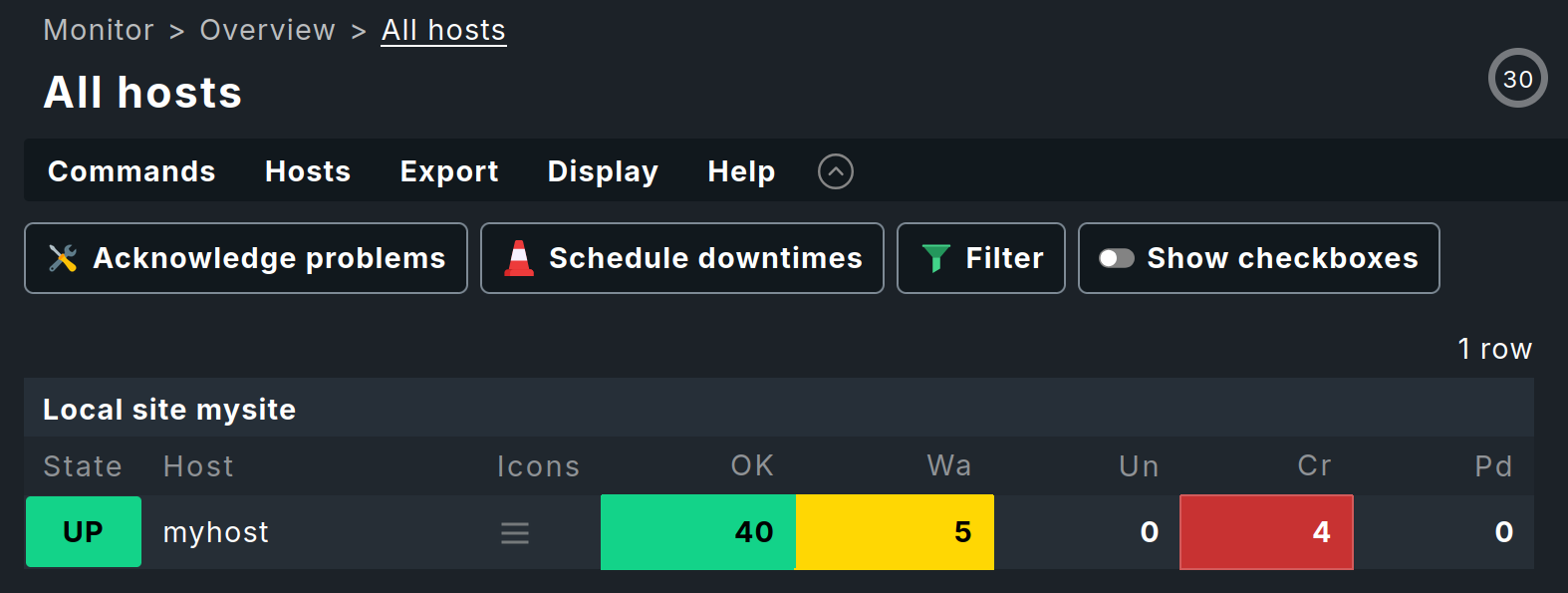
Above the page title, you will see the path to the current page, always starting with the name of the menu from the navigation bar. This 'breadcrumb navigation' helps you to know where you are in Checkmk even after complex actions — the above image showing the All hosts page in monitoring.
4. The sidebar
The sidebar is your Checkmk cockpit. It is the place where you have a continuous overview of the most important monitoring information, as well as quick access to the functions that you need most frequently in Checkmk.

You can compose the complete sidebar according to your preferences. The sidebar elements, also called 'snap-ins', serve this purpose. Snap-ins are compact GUI containers with predefined functions. Since the sidebar is intended to hold your preferences, by default a new installation contains only a few snap-ins:
Welcome to Checkmk — Show slideout with the content of the welcome page
Overview — An overview of all monitored objects with their current status information
Bookmarks — Your personal bookmarks within Checkmk
Master control — Various main switches for the monitoring
If you click on  at the very bottom of the sidebar, the main page will show you all the snap-ins that are currently not in your sidebar and that you can add with a single click.
In this preview, the lower area of each snap-in shows a short description about its meaning and function.
Try it out and fill the sidebar as a test.
at the very bottom of the sidebar, the main page will show you all the snap-ins that are currently not in your sidebar and that you can add with a single click.
In this preview, the lower area of each snap-in shows a short description about its meaning and function.
Try it out and fill the sidebar as a test.
Depending on the size of your screen, not all snap-ins may now be visible. The fastest way to move vertically through the sidebar is to use the mouse wheel while the mouse pointer is over the sidebar. On touchpads, this function is often possible with the gesture 'slide two fingers up and down together' method. There are several ways to customize the snap-ins of the sidebar.
Expand or collapse: Click in the displayed title of the snap-in. Alternatively, point to the title bar and then click
 or
or  .
.Show more or less: Some snap-ins (like Overview) offer you two views — either with only the most important information or with all information. Point the mouse at the title bar and click
 or
or  to switch between the two modes.
Move: Press the left mouse button right next to the title, drag the snap-in up or down to another position in the sidebar and release the mouse button.
Remove from sidebar: Point your mouse at the lower right corner of the snap-in until the
 trash can icon appears, and then click the icon.
So much for the options for customizing the sidebar’s content. As a whole, you can hide and show the sidebar — with Sidebar in the navigation bar — and you can move its position from right to left so that it docks with the navigation bar — in the menu User > Sidebar position.
By the way, you can find more detailed information on the above-mentioned snap-ins in the chapter on monitoring tools.
5. Show less or Show more
Checkmk provides a wide range of setting and selection options in many places on the interface. This selection can sometimes be quite overwhelming, so that one can lose sight of the essentials and orientation becomes difficult — not only, but especially for newcomers to monitoring.
As a measure to reduce complexity, you will find three dots (…) in many locations on the Checkmk interface, such as in the Overview or here on the far right in the first line of the Monitor menu:

Whenever you see these ellipsis points, Checkmk offers two views:
In the 'Show less' mode only the most important entries are shown (meant for the beginner), and in the 'Show more' mode all entries (for the expert).
You can switch between the two modes by clicking on the omission points:
show more with and show less with .
You set the general behavior in the settings for your user profile (User > Edit profile > Show more / Show less > Set custom show mode) by setting one of the two modes as the default — or do without both modes and face the unfiltered complexity with Enforce show more.
6. Searching and finding
The Checkmk interface has a central location for global searches: the Search icon in the navigation bar. When you click on Search, the input field for your search terms will be displayed, along with a few other elements to help you with your search:
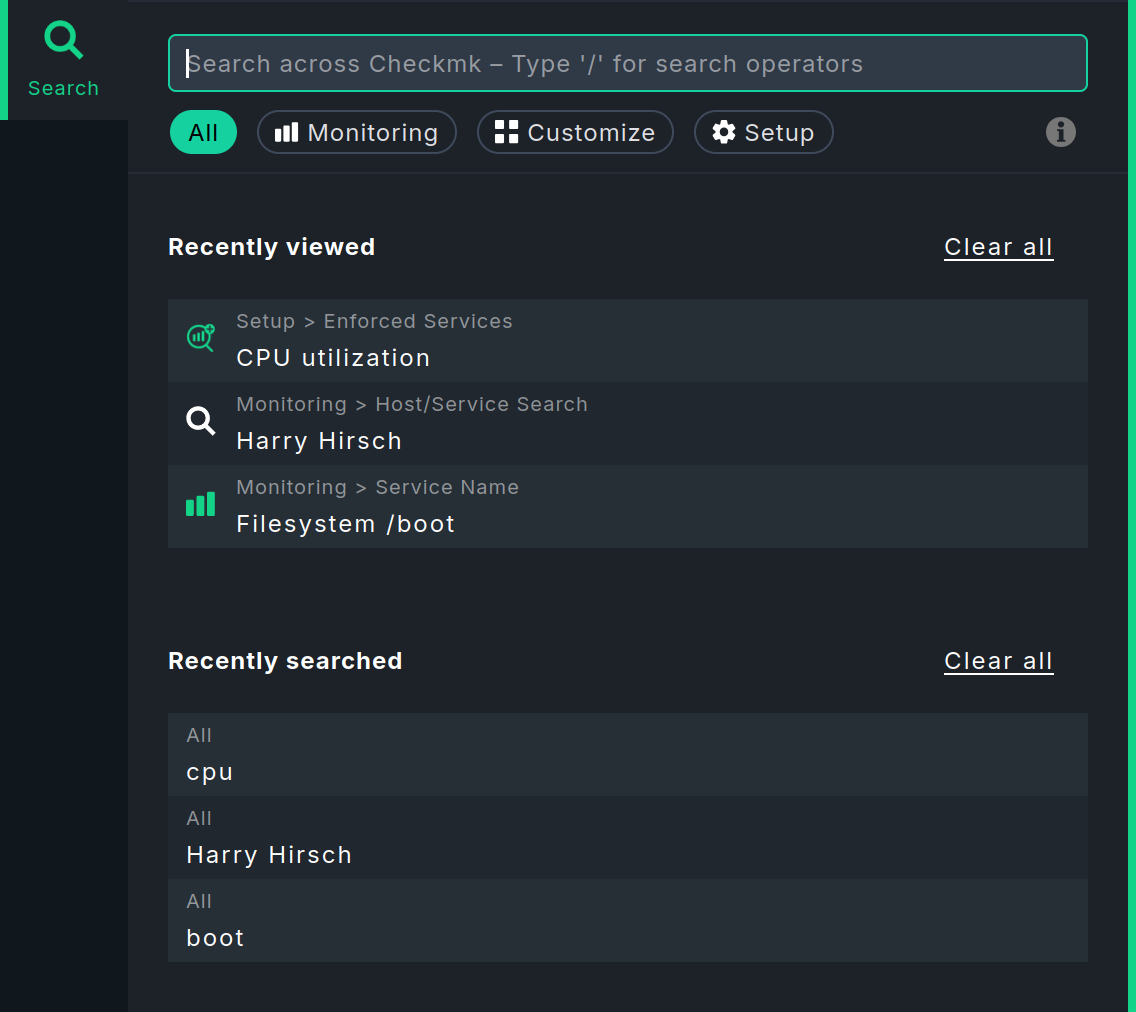
Before you start searching, i.e. when the input field is empty, two lists show details of your last five searches. Of course, this only applies if you have already searched a few times and have not deleted your search history with Clear all. Recently viewed shows which pages were last opened from the search, and Recently searched shows the search terms entered. You can click on any of the entries in the list to open the corresponding page immediately or to transfer the search term to the input field.
The fastest way to start is to type a search term into the input field. You can use any keywords you like when entering your search. You do not need to worry about upper and lower case letters. When you finish your entry by pressing the Enter key, the search will close and on the main page Checkmk will display all matching hosts or services in the monitoring.
Starting the search quickly is not always the best way to achieve the desired result — for example, if you are not searching for the name of a host or service, rather instead for a specific rule or global setting. Hosts and services are found in the monitoring environment, rules and global settings in the configuration environment. It is fortunate, then, that Checkmk searches in multiple environments.
As soon as you start typing your search term, you will immediately see the results below the search field, along with the areas in which they were found:
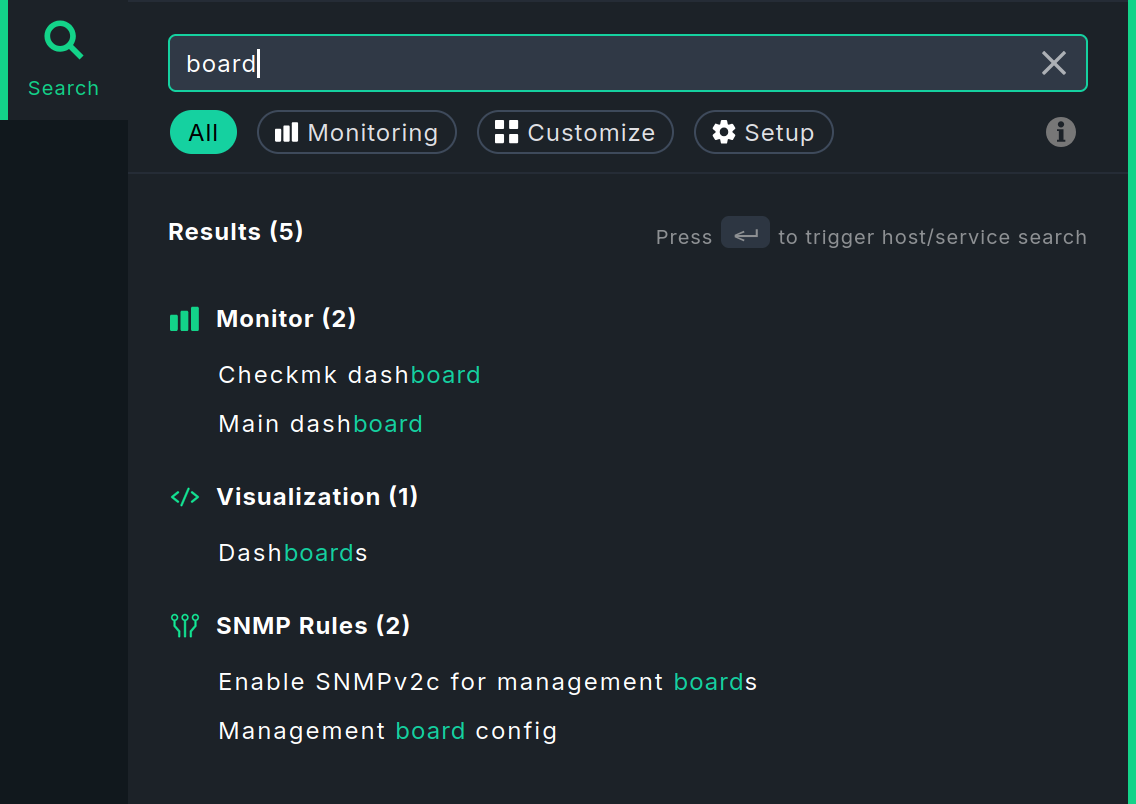
Grouping improves the overview, especially when there are a large number of results. Initially, only a maximum of five results are displayed per group. You can then reload the rest using the last entry Show all. The results are usually grouped according to the topics under which they can be found in the icon menus of the navigation bar.
Checkmk searches in the Monitor, Setup, and Customize menus of the navigation bar. Below the input field, you have the option of restricting the scope of the search. This is particularly useful if you already know in which area you expect to find the result, for example, a service in Monitoring or a rule in Setup.
With All, the search is performed in all three areas. This is the default setting when you start the search using the Search icon. However, you also have the option of starting the search in the Monitor, Setup, or Customize menu using the input field that appears at the top after opening the menu. After entering the first character, you will be redirected to the global search. The search area will be limited to the menu from which you started the search.
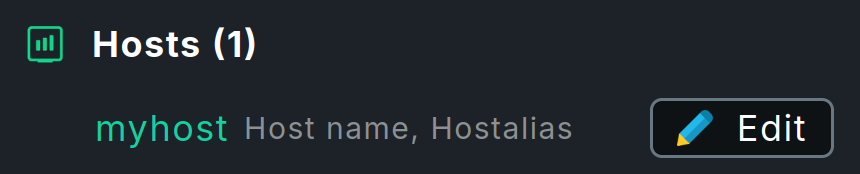
In the search results, a line containing a host name sometimes also contains the  Edit button, which allows you to directly open and edit the properties of this host.
The results of the search in the configuration environment and monitoring environment are combined here.
Therefore, this button is only displayed if you have searched in the All area and the host exists in both the configuration environment and the monitoring environment.
Edit button, which allows you to directly open and edit the properties of this host.
The results of the search in the configuration environment and monitoring environment are combined here.
Therefore, this button is only displayed if you have searched in the All area and the host exists in both the configuration environment and the monitoring environment.
Checkmk performs the search in the background using various methods, collects the results, and presents them in a uniform manner in the global search. You can find out more about the special features of searching in the individual menus in the article on the user interface.
Here in this Beginner’s Guide continue with the monitoring tools